Showing posts with label Apple. Show all posts


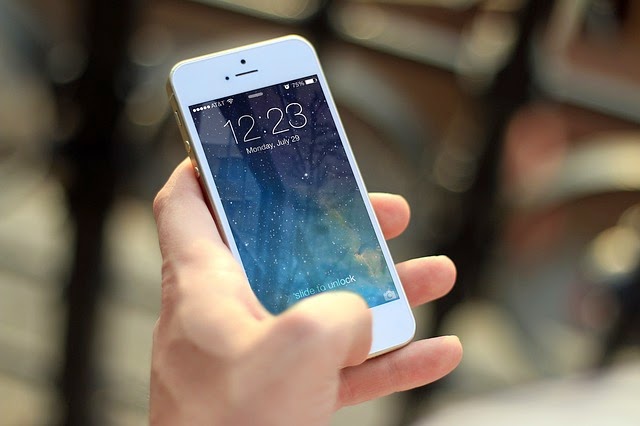
With iPhone 7's latest rumor that it will be released in less than a month from now, we can't help but wonder what new features and look it will offer to its consumers. Will it have a 1080p screen? How about waterproof? Is Apple making special headphones for it? It could be a huge change this year, considering that the iPhone 6S is somewhat underwhelming as it doesn't brought anything amazing aside from the fancy 3D Touch technology.

Straight to the Point
  • What is it? A rebooted iPhone with new powers, features, and design
  • When will it come out? Target date is on September 7th
  • How much will it cost? Most likely it will be the same as the iPhone 6S
iPhone 7 Price
The iPhone 7 price is rumored to be around US$649 (£539, AU$1079) but here's the good news -- for that price, you'll most likely to get 32 GB of storage instead of 16 GB. Bottomline is, there will be a larger base storage option, but there will be very little price increase as the iPhone is already at the peak of acceptable cost.

iPhone 7 Design

Highlights:
  • Water resistance
  • Bezel-less metal body
  • Redesigned antennas

Well heads up for Apple fans, because there's a slight disappointment on this side: it might be very similar outside of a few tweaks here and there. There's a new color option though, since there are rumors that iPhone 7 will be adding Space Black shade to the mix, likely similar to the black Apple Watch option.

Another latest rumor is said to be pushing a blue variant, too. You can see the likely shape of the new iPhone in the image above, showing off the redesigned antenna bands and a single lens snapper.

Slimmer Look


The soon-to-be-released iPhone 7 is said to be slimmer than the 7.1mm-thick iPhone 6S. Though rumored to be around 6-6.5mm thin, it will beat Samsung Galaxy S6 at 6.8mm. Another report claims Apple will be using fan-out technology to save space and reduce the thickness of the iPhone 7.

Is it Going to Be a Waterproof Phone?
Apple screen supplier Japan Display has come up with a new technology called "Pixel Eyes," which is now on its second generation that makes it easier to use the screen while you have wet fingers. However, another report has mentioned that Apple will opt for a slimmer iPhone 7 rather than a waterproof one. Apple will likely get a new LCD technology as well, which could allow the iPhone 7 to be 1mm thinner than before.

iPhone 7 Screen

Highlights:
  • A 1080p screen
  • An edge-to-edge display
  • No OLED technology for this year

Apple is apparently likely to move to glass-on-glass screens, which opens up the possibility of a QHD or even a 4K display. However, Apple's first move will surely be getting both handsets up to 1080p sharpness, as has also been rumored and is expected to have 4.7-inch and 5.5-inch models.

iPhone 7 Camera and Battery

Highlights:
  • A larger, single-lens sensor
  • No more camera bump
  • A larger battery
Apple overhauled its camera technology for the iPhone 6S, replacing its old 8 MP snapper with a shiny new 12 MP and then gave the front camera a boost of up to 5 MP. For one thing the standard iPhone 7 may get optical image stabilization along with the larger iPhone 7 Plus. A recent leak suggests that Apple will increase the battery size for the iPhone 7 while still being able to reduce the thickness.


iPhone 7 OS and Power

Highlights:
  • A hexa-core processor
  • 3 GB of RAM
  • iOS 10
iPhone 7 is being groomed to launch alongside iOS 10, and it's a tremendous feature upgrade over iOS 9.3. It will introduce a much smarter Siri that can command third-party apps, new Messaging functionality and a convenient Raise to Wake way of lighting up the phone.

It won't stop with a software upgrade under the hood. iPhone 7 could be in for a huge performance boost, with rumors that the phone will pack a hexa-core Apple A10 chip.

iPhone 7 Other Features

Highlights:
  • A pressure-sensitive home button
  • Wireless charging


While the iPhone 7 is greatly expected to look similar to the iPhone 6S, it could be a purely different beast inside. It has also been reported that the iPhone 7 will be "more complex" to manufacture than any previous iPhone, suggesting there could be a lot more going under the hood.

You're now in college. At last, you're free to do anything you want your parents have been restricting you to do when you were in high school. Now, you can have all the liberty to have all the party and booze, like the ones you see in the movies. But most of all, don't forget that college life is also about studying and learning new and worthwhile stuffs, too.

Aside from that, college life can also be confusing and challenging at the same time. It can be difficult, at first, to find your footing in a social way. Thanks to technology, you can easily touch the World Wide Web with your own hands. Here is a collection of apps that will surely kick start your college social life.

Twitter
Don't be the only person in class who isn't updated with the world events. Use Twitter to keep yourself in the loop in both the academic and social aspects of your college life. In today's contemporary classrooms, you may even be asked to participate in class discussions via Twitter.

The app is available for free for iOS and Android devices.

Between
Are you someone whose attempting the long-distance relationship course? Kudos to you because that's not a small task to deal with. Relationship app Between can help you ease the separation anxiety by letting you send messages, voicemails, memos, and photos. A private timeline makes it easy to reminisce about the good old days with your significant other or loved one(s).

Between can be downloaded for free by iOS and Android users.

Skype
Video interviews are not going away any time soon -- so you might as well get a heads up now. Microsoft's Skype is a reliable way to connect with faraway family and friends via text, voice, and of course -- video.

It is available for free on iOS and Android devices.

LinkedIn
LinkedIn and all its nifty features makes connections a breeze -- for better or worse, college is a time of both personal and professional connections.

The LinkedIn app is available for free on the Internet, of course, but you can also get it for free for iOS and Android devices.

Afterlight and Over
These days, anyone with an Instagram account can call themselves an amateur photographer of sorts. But with these two apps, you can even make more beautiful pictures to put on your blog or social media accounts. Afterlight is an app that has lots of shape, formatting, and filters to make your pictures really beautiful. And Over is an amazing app that lets you put text on your pictures. What makes these two photo apps stand out specifically are that they are super sleek and classy, so really nothing that you do to your photos with both of them makes your pictures ten times better looking. Of course, these are more for your average Facebook/Insta use and not for professional photography per say, but anyone of any expertise can use them to make pictures really nice. With these apps, you won't be able to stop editing.

Meetup
Let's face it, when you graduate into the real world, you're not going to have all your friends living within a mile radius for you to hang out, party, or go to football games with. So realistically, if you are new to the place or the city, or even just interning for a couple of months somewhere, it helps to join a group who has similar interests or backgrounds. And that may sound terrifying, or Tinder-esque, but the whole point is to find an entire group of people to hang out with and get to know. So maybe consider taking a buddy with you, or ask around about activities, but give it a try so you'll get used to your new home.

Click here to download Meetup for free.


You may find it hard to distinguish the difference between iOS 8 and iOS 9 at first glance, but if you look into it a little closer you'll find that the newest Apple software has a lot to offer. The new iOS 9 is loaded with a bunch of new apps, added features, and some cosmetic modifications that aim to make some major improvements on iOS 8.

Here are some of our favorite tips, tricks, and secret additions that will help you become an expert of Apple's latest operating system.

How to search
Simply swipe right on the home screen, and you'll get the new search screen. You can find Siri suggestions here based on your previous activity, so you may find contacts, news, or other information that you might be interested in. Apple has also added more natural language support into the search function, so you can easily phrase questions.

If you go to Settings, you'll also see that Apple added a search bar at the top, specifically for finding that baffling toggle without having to go through all those menus.

How to launch Siri hands-free
If you own a new iPhone 6S or iPhone 6S Plus, you can now say "Hey Siri," anywhere at any time, and Siri will respond to you. Back in iOS 8, this was only possible if your iPhone is plugged in and charging. Unfortunately, users of iPhone 6 and below also had this experience. To enable this feature, go to Settings, then General. Now, go to Siri, and then toggle Hey Siri on. You'll do a quick spot of training to ensure that Siri only responds to your voice, and then you're all set.

Back to App
In an effort to improve app switching and multitasking, iOS 9 offers a very convenient way to move between several applications. For example, opening a link sent via Messages will take you to the URL, but instead of double-tapping to bring up the app-switcher, there will be an option to go Back to Messages found at the top left corner of the screen.

Group Notifications
Instead of viewing all your notifications in a purely sequential list, you now have the option to group notifications by app. This can be done by going to Settings, then Notifications, and then enableGroup by App. So, instead of searching for your most recent CNN updates within a giant unorganized list, your notifications will be grouped according to the app it relates to.

Disable Shake to Undo
Shake to Undo is a hidden feature in iOS 9 that lets you quickly delete the last few words typed with just a quick shake of your iPhone. There have been reports that it has been overly sensitive and the pop-up appears to be frustrating. Now, you can disable it altogether by going to Settings, then Accessibility. Next, go to Shake to Undo, and then toggle the slider to enable it.

Turn a video into a floating window (for iPads only)
As part of Apple's effort of integrating multitasking better into the iPad, iOS 9 enables you to turn a video into a floating window and have it show up even when you exit the app. This is perfect for catching up on some TV while you knock out an email, and it also works for FaceTime calls.

Currently, it only works with the native Videos app and some websites, just tap the icon above (furthest left on the video player) and prepare for a much enhanced multitasking. You can resize the window by pinching it or shut it down completely by hitting the X icon.

For most people, their iPhone is the most important thing they own. It holds a lot of important data, from contacts, personal photos and videos, playlists, emails, financial information, and so much more. And if you are one of those who love to use their iPhone as their primary camera, then you will have tons of precious memories you wouldn't want to lose. That is why it is very important to always back up your phone's data, not only because you will be updating the operating system or upgrading to the latest iPhone model.

Before you go about backing up your iPhone, remember these 5 simple reminders to ensure that your data are backed up correctly and that your data are secured before upgrading to the latest iOS.

1. Make Sure Your Contacts, Messages, and Calendars are Backed Up
Before you back up your iPhone, do make sure that your contacts, messages, and calendars are backed up to iCloud or Gmail. This will ensure that you will not lose any of your important contacts, text and email messages, as well as important appointments set on your calendar.

To do this, simply go to Settings > Mail, Contacts, Calendar. From there, tap the account you use to save data (iCloud or Gmail), and then make sure Mail, Contacts, Calendars, and Notes are all toggled on.

2. Back Up Your Photos and Videos to Cloud
Syncing your iPhone to your Mac or PC is not enough these days. You also need to back it up to make sure you will always have a copy of your personal photos and videos since Photo Stream on iCloud will only store up to 1000 photos in cloud for 30 days. Since that is the case, you are liable to lose these photos unless you have a copy saved on a disk.
To make sure your photos and videos are properly backed up, use Dropbox, OneDrive, or other services like Google+ Photos. These cloud storage apps not only store your photos, but they also have an auto-upload feature that allows you to automatically upload your photos to cloud when you're connected to Wi-Fi, without even opening the app.

3. Back Up Your Photos to Mac Using Image Capture
Some might say backing up your important data to multiple locations is pretty extreme. But, it is better to be safe than sorry, is what I often say.

Image Capture is a built-in utility found in Mac OS. It enables you to upload pictures from your iPhone, iPad, iPod touch, digital cameras, and scanners that are connected directly to the computer or to the network. In Image Capture, you can select the photos you want to save, including their destination. You can save them to your computer and/or to an external hard drive.

4. Back Up Your Photos and Videos to a Windows Computer
Backing up your photos and videos to a Windows computer is very easy. All you need to do is follow these simple steps:

STEP 1: Connect your iPhone to the Windows computer using the cable that came with it.

STEP 2: Once your iPhone is detected, open Computer, then right-click your iPhone's drive, and then click Import pictures and videos.

STEP 3: When the Import Pictures and Videos window appears, select the destination where the photos and videos will be imported.

NOTE: You also have the option to delete the photos and videos from your iPhone once they are imported.

5. Back Up iPhone to iTunes
iTunes can be used to back up your entire iPhone. When you use iTunes to back up your iPhone, it will clone your entire device, and that includes your apps, settings, photos, videos, music, etc. To do this, simply follow these steps:

STEP 1: Open iTunes. Make sure you have the latest version installed. You can download the latest version here.

STEP 2: Plug your iPhone to your computer (Mac or PC) using the USB cable it came with.

STEP 3: Once your iPhone is detected, click File, and then click Devices.


STEP 4: Click Back up.

Security is one of the biggest issues nowadays, so it has been a mandate to implement some sort of security for every data as much as possible. In relation to this, Apple recently updated its iWork suite of apps, which now gives you options to password protect your iWord documents on any Apple platform. The update on iWork included bug fixes and feature enhancements of the app on iOS, Mac OS X, and iCloud.com versions. And one of the feature enhancements enables users to set a password on documents, which protects your documents from any possible unauthorized access. If you haven't done so, here's how simple it is:

Set Up a Password on iCloud.com
To set up a password on your iCloud.com connected device, first step you need to do is to log in to your iCloud.com account. Then, locate the document you want to apply the password to, and then launch it. On the upper right-hand corner of your screen, tap the Tools icon (the one with the wrench), then tap Settings. Now tap the Set Password option, and then provide the requested information, including your preferred password.


Set Up a Password on iOS
Setting a password on your iWork document from an iOS device is similar as to how it is done on the iCloud.com version. Simply open the document, then tap wrench icon to launch the settings menu, and then tap Set Password. Enter the password of your choice, as well as a hint, if in case you forget your password later on, and then tap Done. The next time you open the document, you will prompted to enter the password in order to proceed. You also have a choice to set the iWork app to remember the password. Just a quick tip, the password you've set will only apply for a specific device and will not be synchronized with your other iOS or iCloud-connected devices.


Set Up a Password on OS X
The process in setting up a password on your Mac OS X computer is somewhat different from the first two platforms. To do this on a Mac, click on the File menu on the toolbar, then select Set Password. You can also do it in a different way by clicking the Share icon, then selecting View Share Settings, and then selecting Add Password where you can set your desired password.