 Almost everyone owns a
smartphone. People have become very attached to their smartphones that they are
rarely without them. They keep them within arm’s reach, sleep next to them, and
even use them when in the bathroom. What most people don't realize is that
smartphones are a snooper's best friend. The features that make smartphones
smart are the same reasons why the modern day smartphone is a private citizen's
worst privacy nightmare. Just think about the information you have on your
smartphone: email addresses, phone numbers, calendar appointments, photos,
videos, possibly saved passwords, and financial information. Furthermore,
smartphones can be used to continually track your location to monitor your
whereabouts.
Almost everyone owns a
smartphone. People have become very attached to their smartphones that they are
rarely without them. They keep them within arm’s reach, sleep next to them, and
even use them when in the bathroom. What most people don't realize is that
smartphones are a snooper's best friend. The features that make smartphones
smart are the same reasons why the modern day smartphone is a private citizen's
worst privacy nightmare. Just think about the information you have on your
smartphone: email addresses, phone numbers, calendar appointments, photos,
videos, possibly saved passwords, and financial information. Furthermore,
smartphones can be used to continually track your location to monitor your
whereabouts.
In spite of this, we
can take some measures to ensure that our smartphones remain secure. If your
phone is not secure and it got lost or stolen, your personal information,
including your photos, passwords, banking information, and emails could be used
to steal your money, or worst — your identity.
A Windows Phone is
secured by design. Some of its security features are enabled by default. But,
there are still a number of things you can do to help keep your personal
information and your Windows Phone secure. Here are a few you can try:
Assign
a Password or PIN Code on Your Phone
Setting up a password
on your phone's lock screen is possibly one of the basic security measures you
can employ to prevent unauthorized access to your phone. It might be a pain to
constantly type a PIN or password every time you want to use your phone, but
losing your phone without the protection of a password could lead to a far
greater headache.
To set up a password
or a PIN on your phone, go to the App list, tap Settings, and then tap Lock screen. Turn on Password, and then enter your preferred password in
the New password and Confirm password boxes. Tap Done to save your changes.
Set
Up a PIN on Your SIM Card
Setting up a SIM card
PIN will prevent other people from making unauthorized phone calls with your
phone. To set up a PIN on your SIM card, tap the Windows icon on the Start screen. Tap Phone > More > Settings. Turn on SIM
security, and then enter the PIN for
your SIM by doing one of the following:
- If you are setting up a PIN for
your SIM for the first time, enter "1234" and then tap Enter. 1234 is the default PIN for most
SIMs. If the default PIN did not work, contact your mobile carrier for the
correct default PIN.
- If you have already set up a
PIN on your SIM card, even if it was on another phone, enter your PIN, and
then tap Enter. You will then receive a
message saying "SIM PIN enabled."
Set
Up a Wallet PIN
A Wallet PIN is a
numeric password that you can assign to your Wallet. When combined with the
lock screen password, it can provide an extra layer of protection and prevent
unauthorized purchases in the Windows Phone Store and unwanted NFC payments.
To set up a Wallet
PIN, go to the App list, tap Wallet > More > Settings+PIN. Turn on Wallet PIN, then enter and confirm
your PIN code, and then tap Done.
You can also check the Use Wallet
PIN to protect music, app, and in-app purchases box if you want to require this PIN when
purchasing in the Windows Phone Store.
Use
the Find My Phone Service
Find My Phone is
Windows Phone's own built-in version of Apple's Find My iPhone and Android's
Android Device Manager. Find My Phone can ring and lock your phone, show its
location on a map, or erase its information if it is stolen. You can even send
a short message containing your contact information that will appear on your
phone's lock screen in case someone found your lost phone. To know more, click here.
Set
Up Kid's Corner
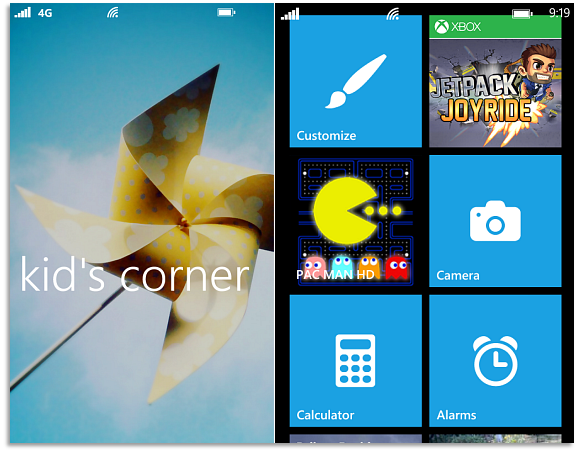
Kid's Corner is a safe
place for your children to play with the games, apps, music, and videos added
there, while restricting them from accessing your phone settings and making any
changes. To set up Kid's Corner, go to the App list, tap Settings > kid's corner. Select the Apps, Games, Music, and Videos you want to add, and then tap Done.
Regularly
Back Up Your Data
Make sure to back up
your phone settings, photos, videos, text messages, and contacts to cloud. It’s
a good thing Windows Phone has a feature that allows you to automatically back
up your important phone settings and data to cloud in case something untoward
happens to your phone.
To turn on apps and
settings back up, go to the App list, tap Settings > Backup > Apps + settings. Turn on Settings
backup and App backup. You can also back up your text and chat
messages by turning on Text message backup and Chat backup.
To auto upload your
photos and videos to cloud, go to App list, tap Settings > Backup > Photos + videos.
Keep
Your Phone Updated
Like any device, your
Windows Phone will work better when it is running the latest Windows software
update as well as the manufacturer update, if there's any. That is why it is
recommended to download and install any update available for you.
To automatically
download updates, go to the App list, tap Settings > Phone update, and then check the Automatically
download updates if my data settings allow it box.


